

Getting started
Set up your Chief of Staff, step by step.
This guide follows the six setup steps inside your account. At the end you have a Chief of Staff: the Agent who talks to your customers, builds your team of Agents and reports to you. Your progress is saved at every step, so you can leave and come back whenever you like.


Before you begin
- A work email address to create your account.
- Your website, your business licence or a few sentences about what you sell, to whom and where.
- A payment card for your plan. Plans renew monthly and you can cancel in one click.
- Your own mobile number, so your Chief of Staff recognizes you on calls and WhatsApp.
- A computer with a microphone, so you can talk to your Chief of Staff in the browser.


Step 1
Your company
Tell us about the business your Chief of Staff will run with you.
- Add your website, upload your business licence or write a few sentences about what you sell, to whom and where. Any one of them is enough.
- Choose your country and industry. Your country sets the time zone for opening hours and reports, and your industry shapes the team we propose.
- We read public pages only, never anything behind a login. A licence is read for your business details and then deleted.
Tip. No website? A few clear sentences work just as well.


Step 2
Your profile
Check what we understood about your business.
- You see your business name, what you offer, who your customers are, where you are and your opening hours.
- Correct anything that is wrong. Lines marked as a guess are not used until you keep them.
- Your Agents answer customers from this profile, so a few minutes here pays off on every call.


Step 3
Your plan
Choose the plan that fits your call volume and the size of your team.
- Plans differ by the call minutes and the number of Agents they include. Prices are in USD, excluding taxes.
- Payment is handled by our payment partner. We never see or store your card details.
- Extra minutes, phone numbers and Agents above your plan are paid from a prepaid wallet you top up yourself.
- Plans renew monthly. Cancel in one click and your plan keeps working to the end of the paid period.


Step 4
Your Chief of Staff
Meet the Agent who runs your team, and accept the structure of your company.
- Only your Chief of Staff is created now. It answers your customers by phone, WhatsApp and email from day one.
- We propose a structure of departments and roles from your industry, for example Sales, Finance, Operations and Support. Accept it, or rename and leave out what does not fit.
- Roles stay empty until real work needs them. Then your Chief of Staff creates an Agent for the role, names it, gives it tools and skills, and tells you.
- Tools that need no account are used once your Chief of Staff approves them. Tools that need an account, such as your calendar or CRM, you connect yourself under Integrations.
- Press the test button and talk to your Chief of Staff in the browser.
Tip. Ask the questions your customers ask most, in the language they speak.


Step 5
A phone number
Give your Chief of Staff a number for real calls. This step is optional.
- Instant numbers are ready in a minute in many countries.
- Local numbers in some countries need business documents and a review before they work, which can take a few days.
- Bring your own number by forwarding or porting the number your customers already know.
Tip. Skip it for now if you like. You can add a number later from Numbers, and keep testing in the browser meanwhile.


Step 6
Your phone
Tell your Chief of Staff how to recognize you.
- Add your own mobile number. When you call or message on WhatsApp from it, your Chief of Staff knows it is you: this is your owner line.
- On the owner line you give orders and approve work in plain words, the same as in the app.
- Finish, and your dashboard opens with your Chief of Staff ready to work.


After setup
- 01
Set a goal
Tell your Chief of Staff what you want, such as 20 new bookings a week. It turns the goal into a plan with targets for each department.
- 02
Approve with one tap
Every new Agent starts at Approve: it prepares the call, message or invoice and waits for you, in the app or on WhatsApp. When you trust a role, promote it to Act and it works alone and reports after.
- 03
Read the daily report
Each Agent notes every task, department heads summarize, and your Chief of Staff sends a daily report and weekly goal progress. Every number is counted from real work, never estimated.
Stuck on a step?
Write to us and a person from our team will help you through it.
The Agent page
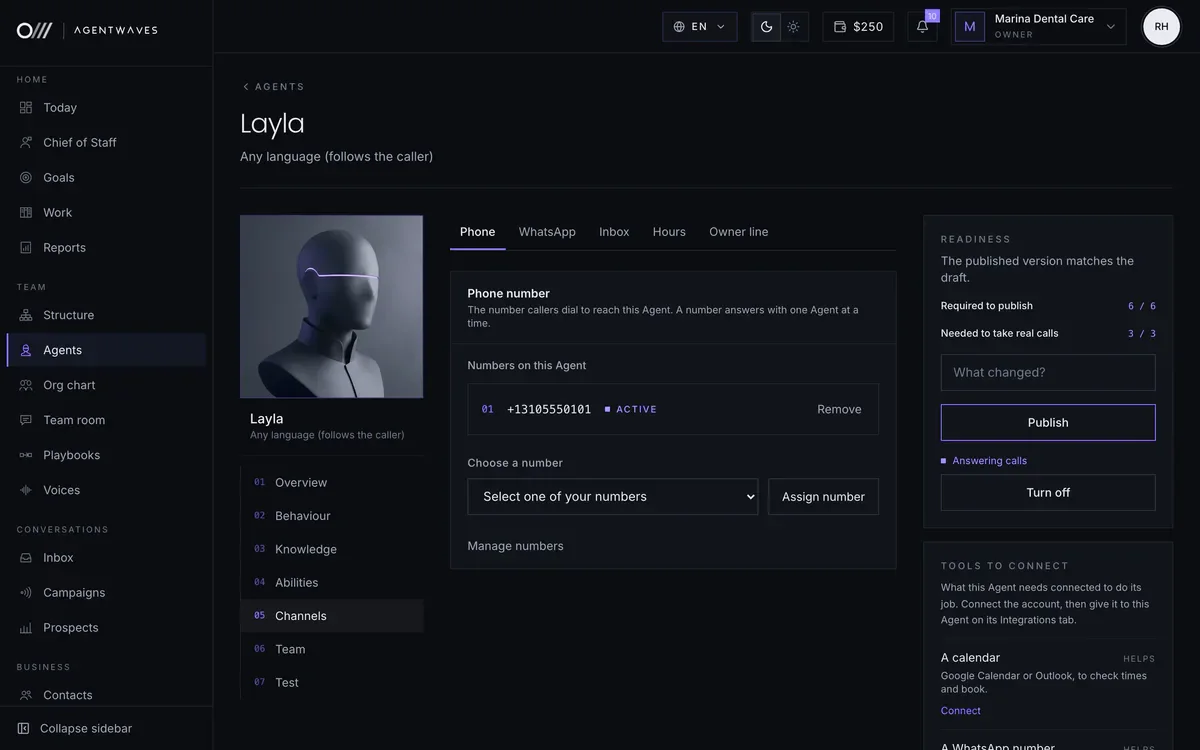
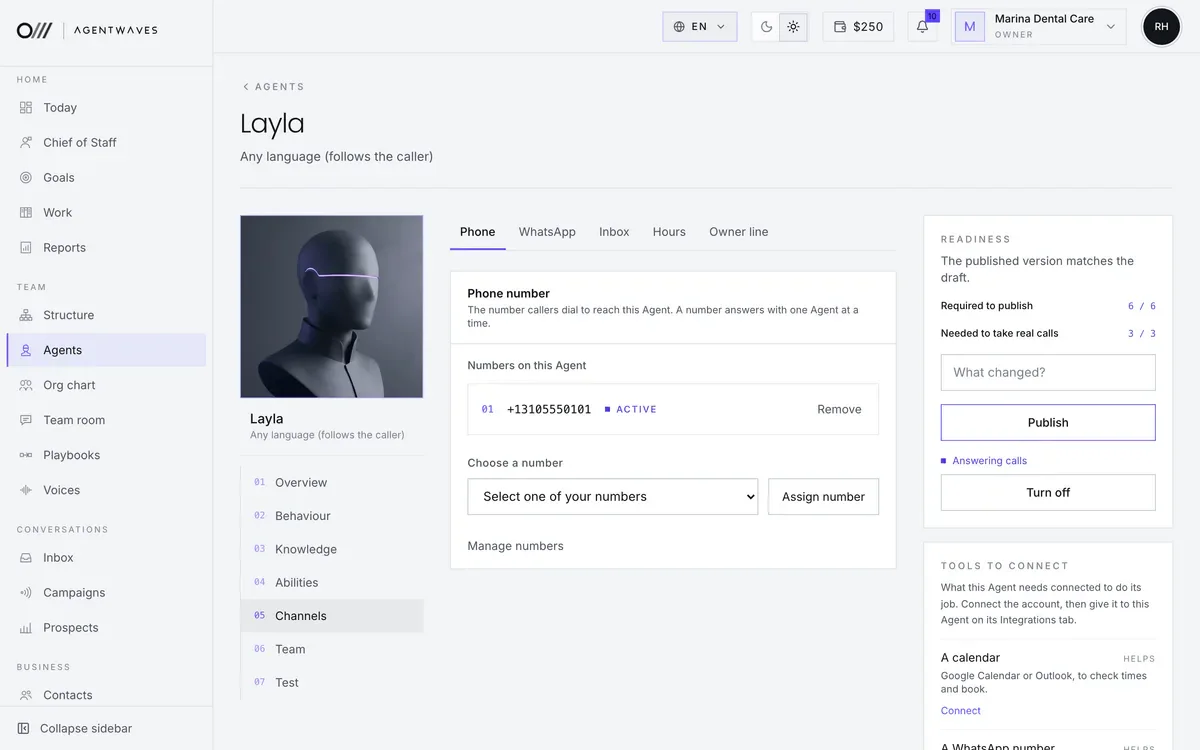
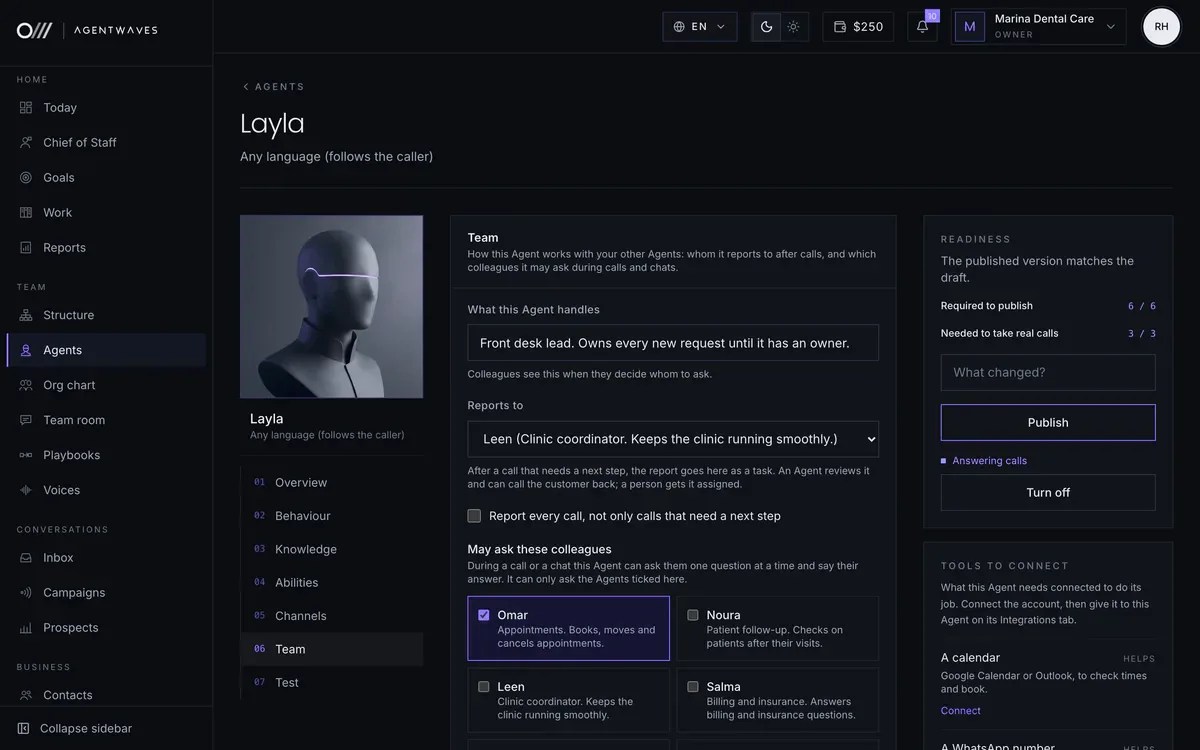
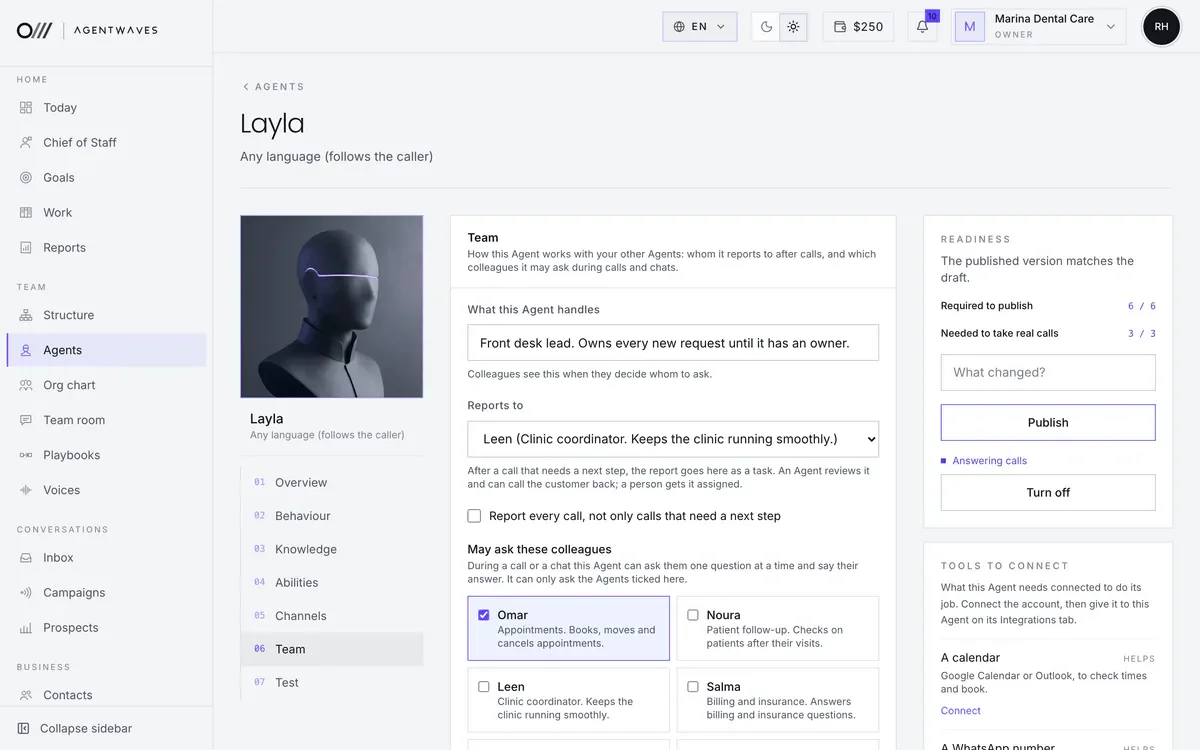
Seven tabs,
everything one Agent needs.
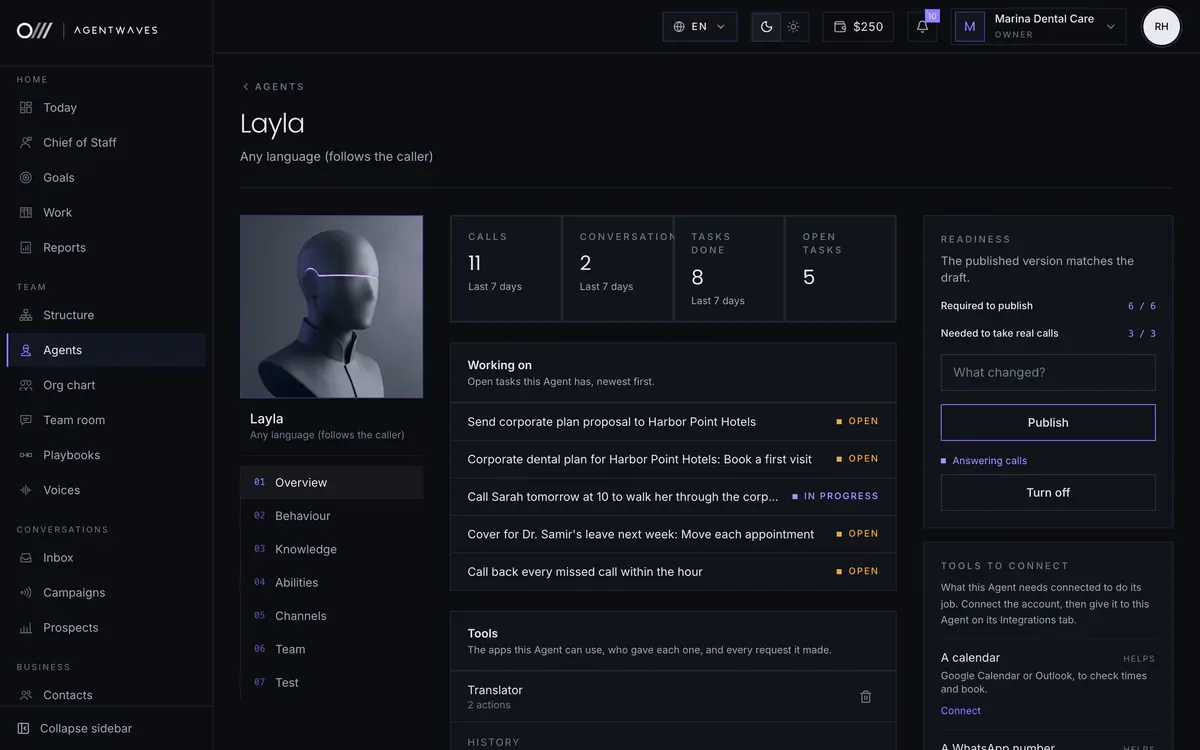
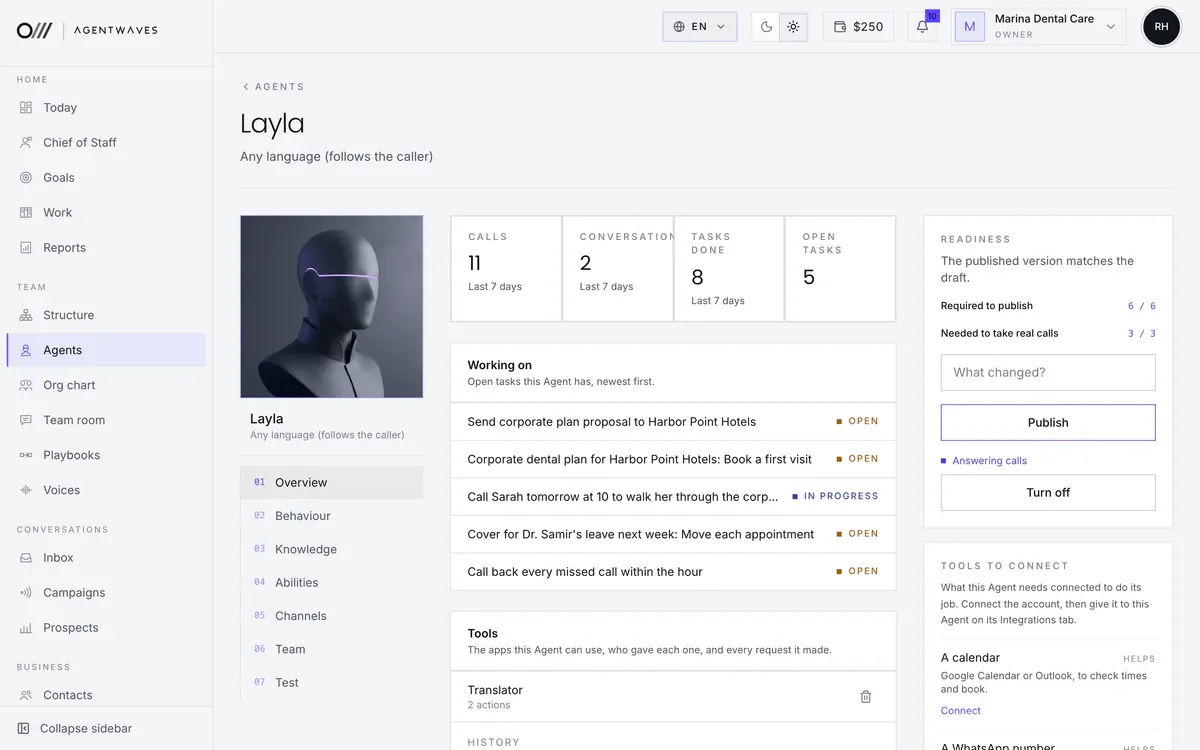
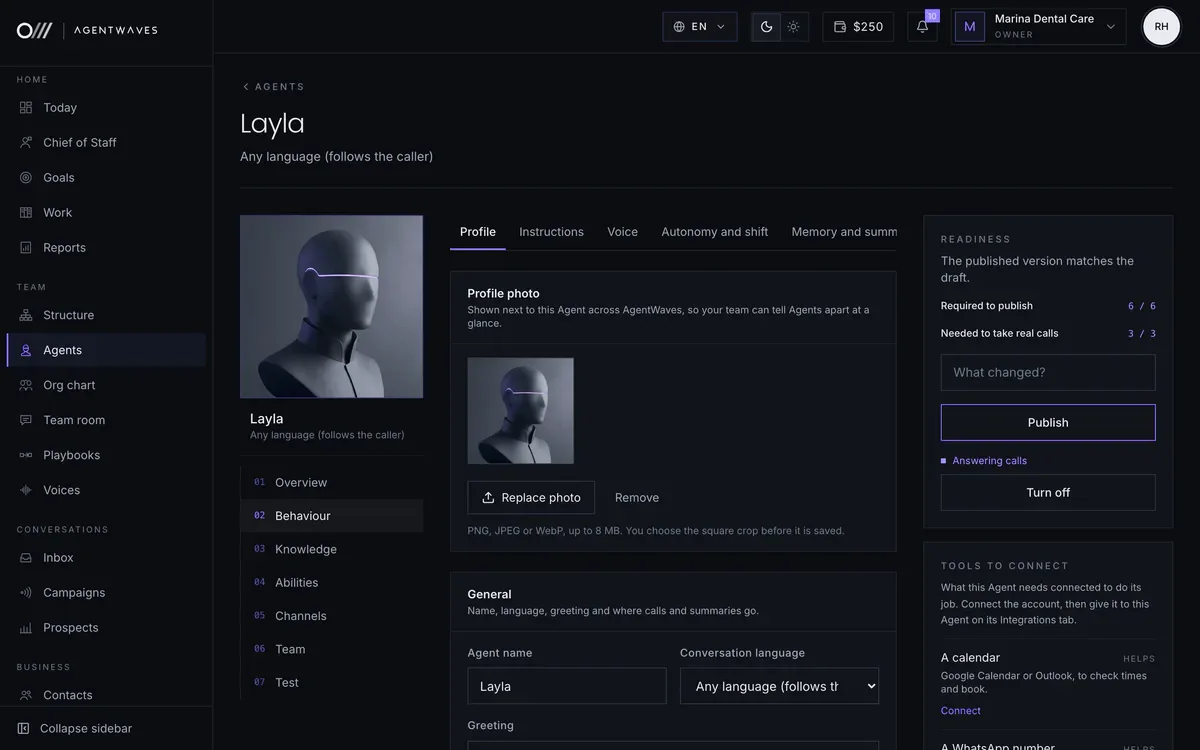
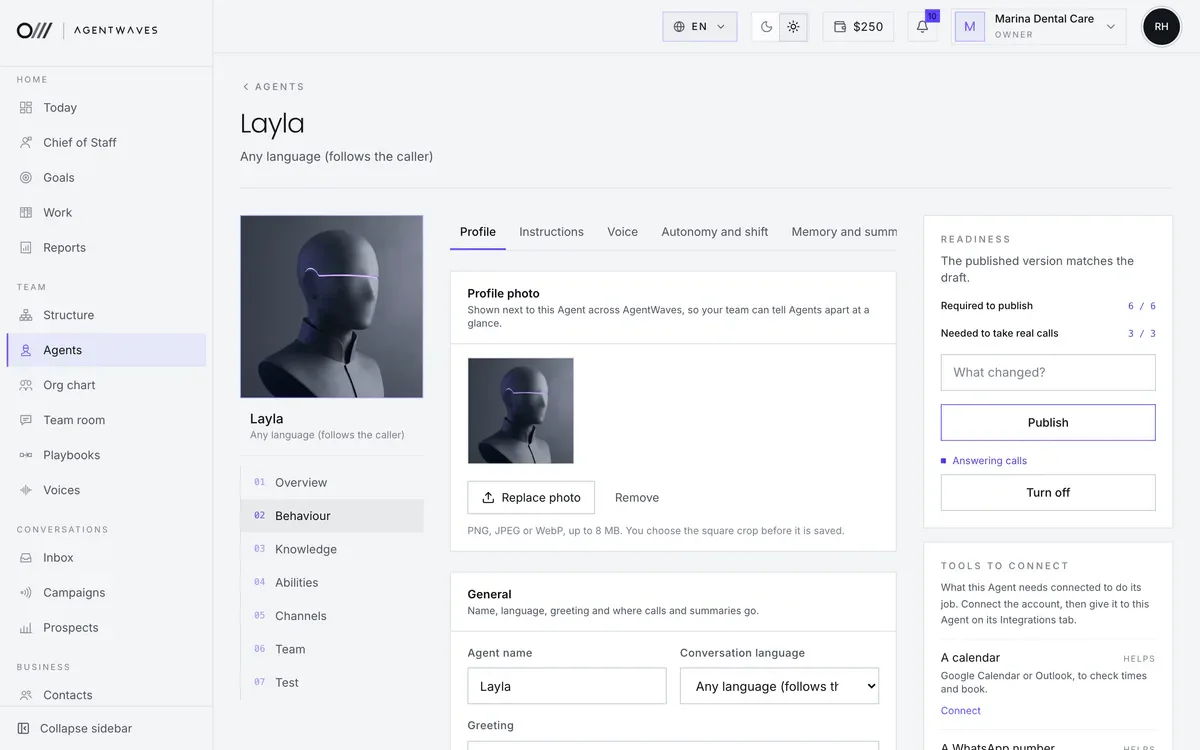
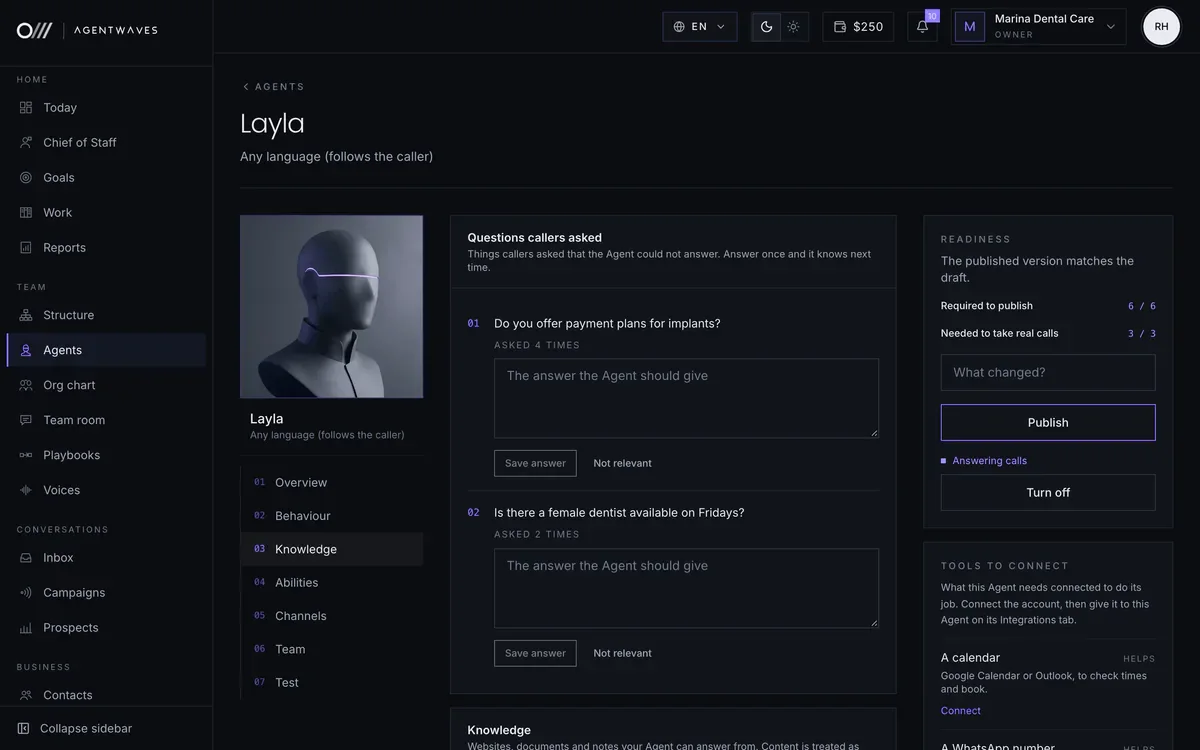
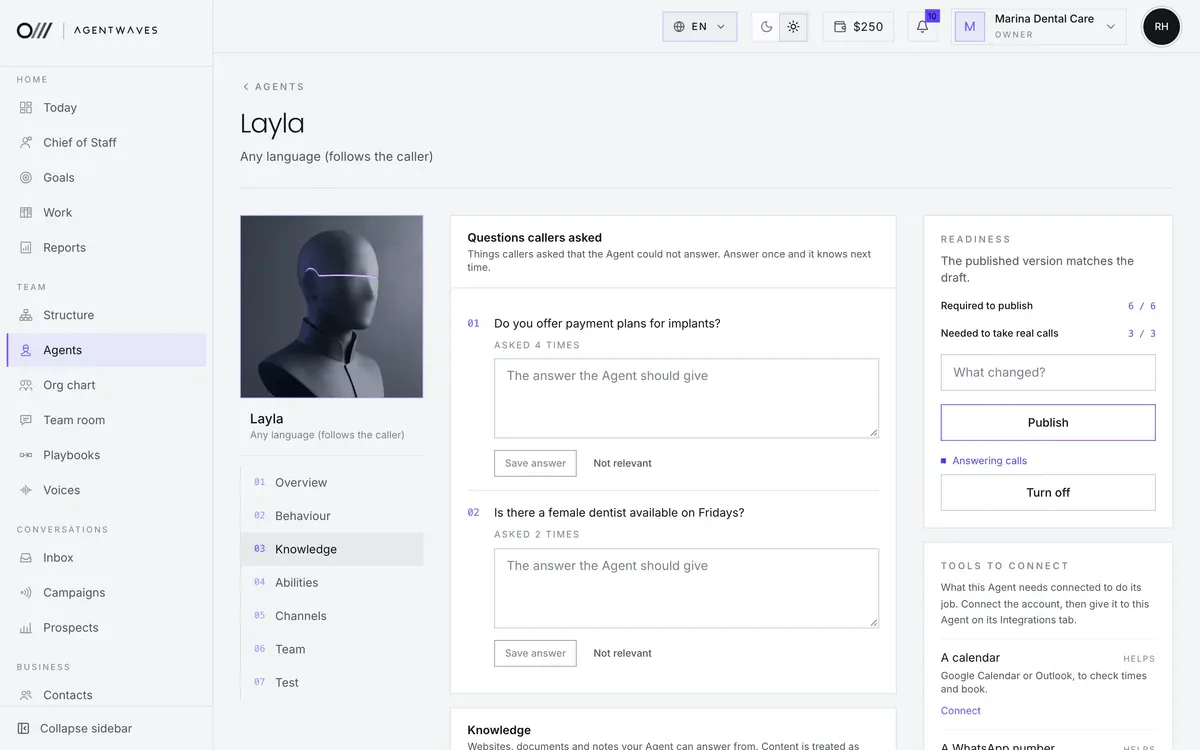
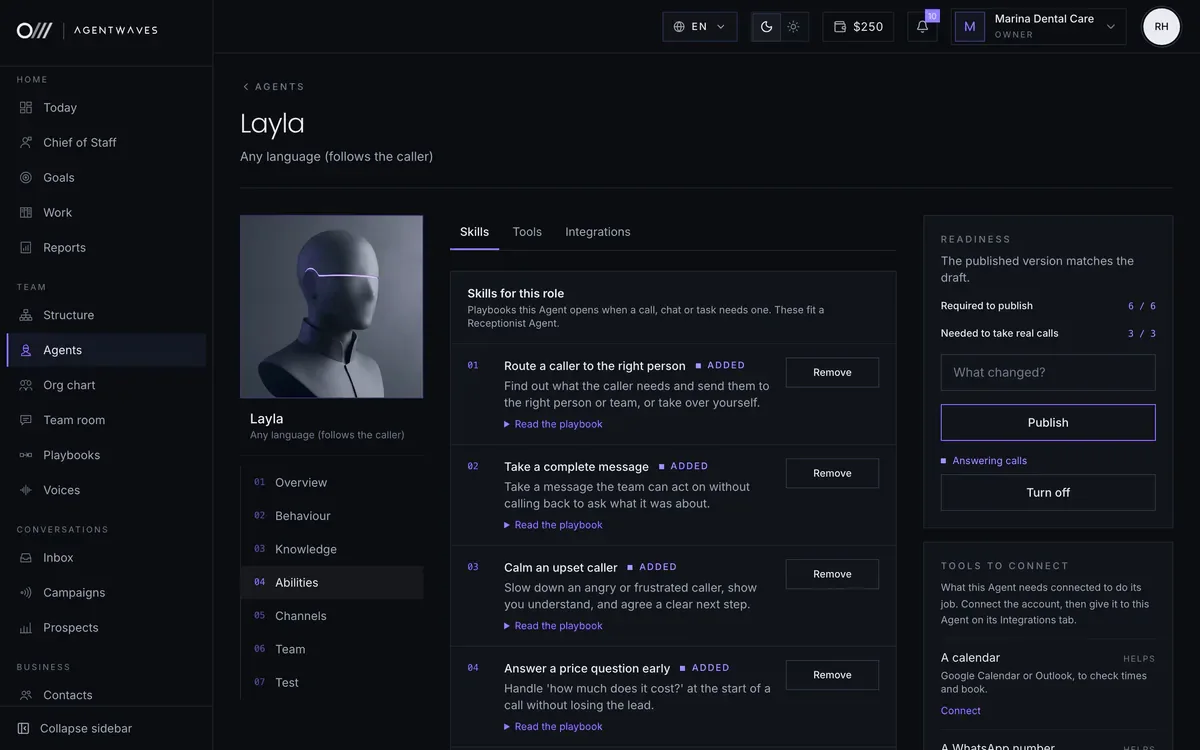
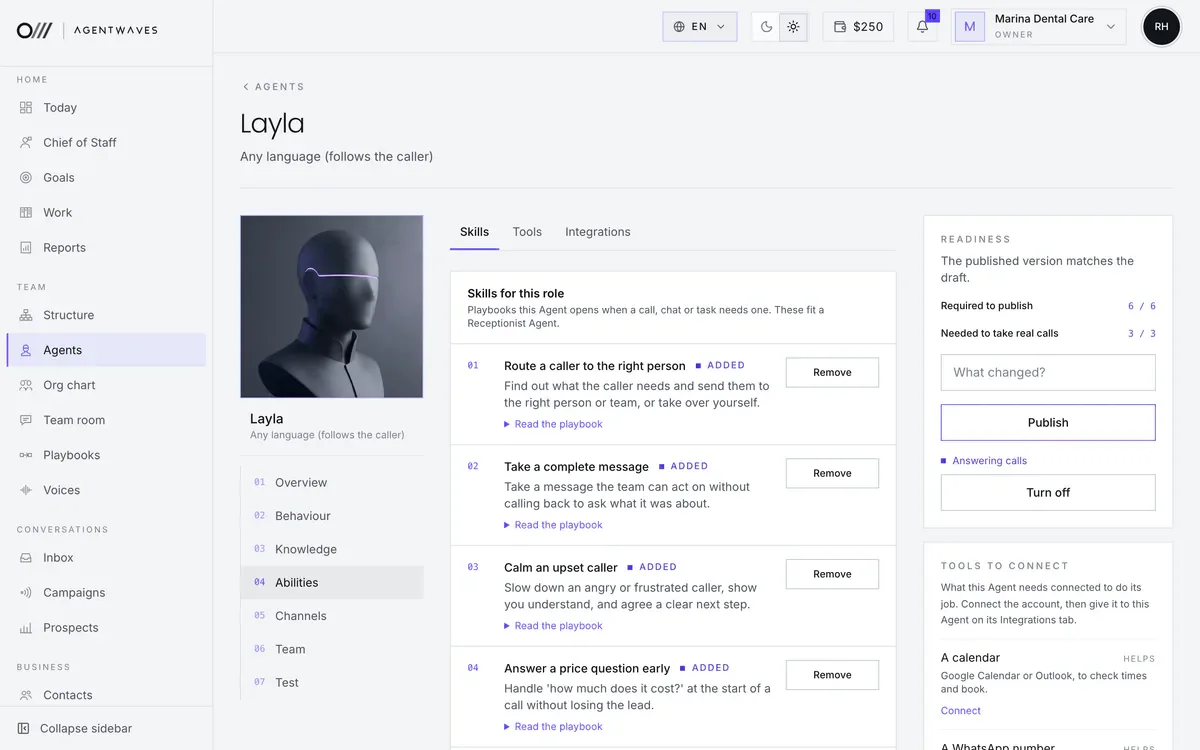
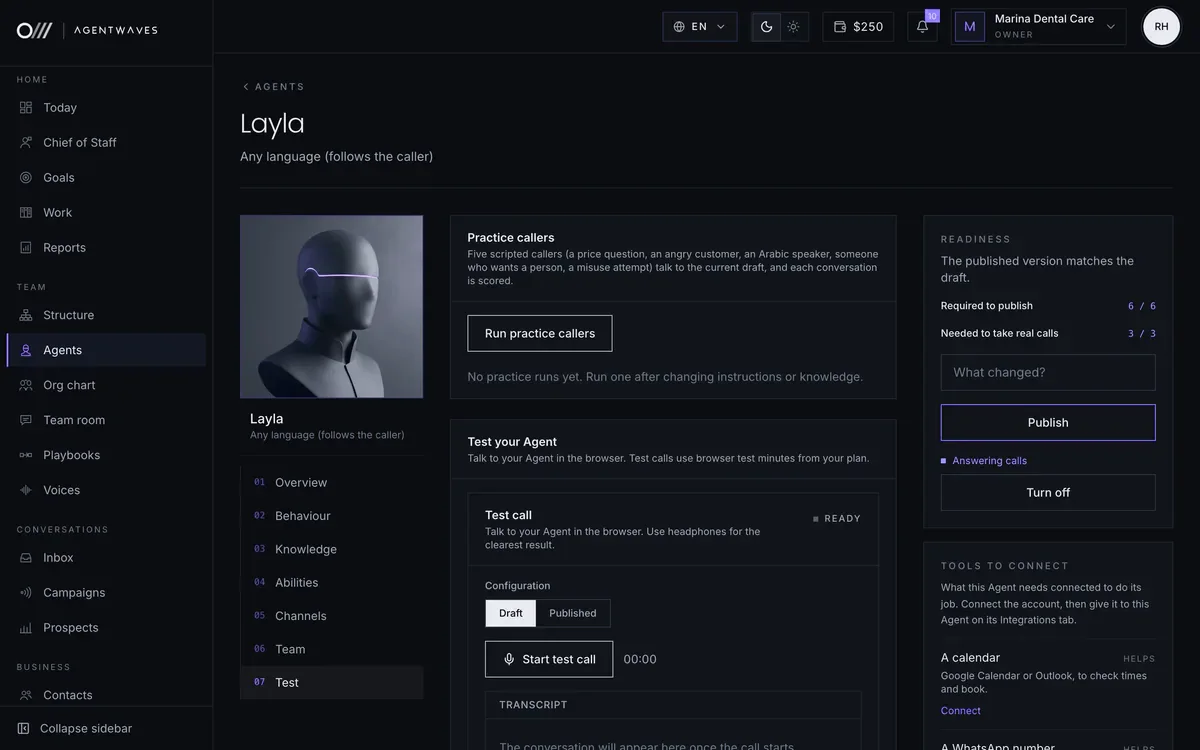
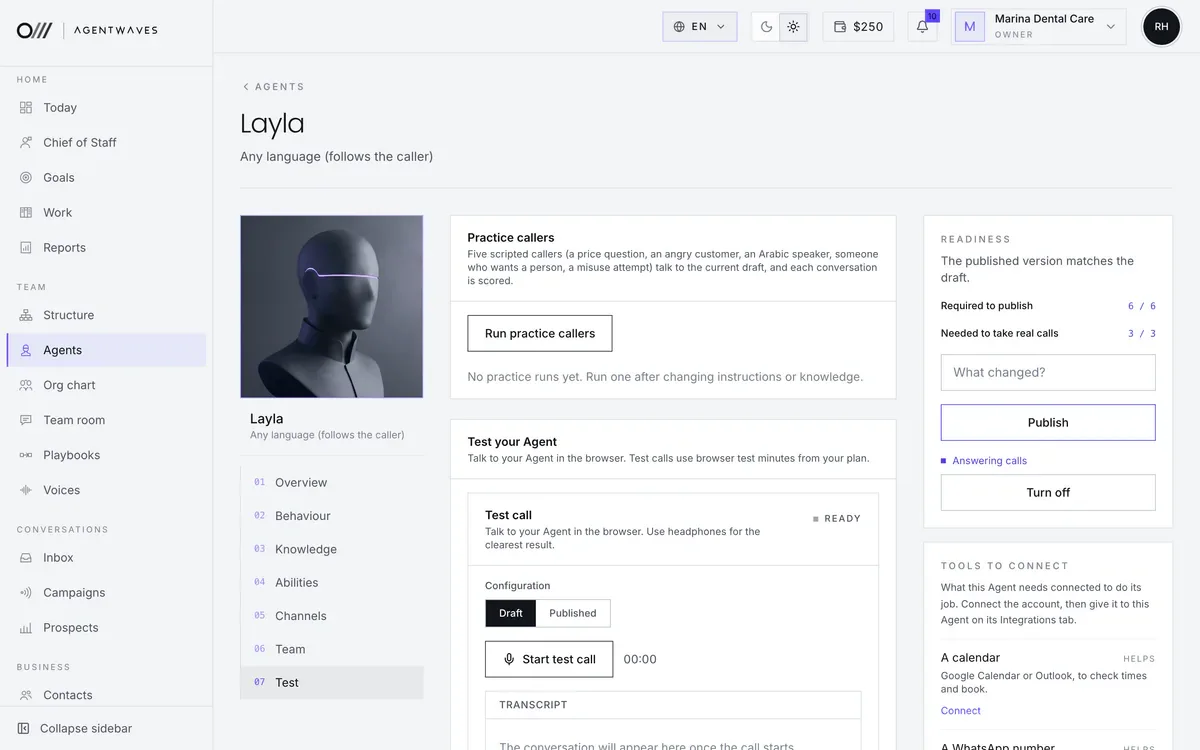
Every Agent has the same seven tabs, in the order you set them up: who it is, how it behaves, what it knows, what it can do, where it works, who it works with, and a test before it goes live.
- Sample workspace. People, numbers and figures are fictional.
Where you will work
Two screens you will use every day
Most of the setup above happens on the Agent page. Once it is live, the Chief of Staff page is where you put the team to work.
The Agent page
Photo, name, greeting and language, with readiness and the publish button always in view.
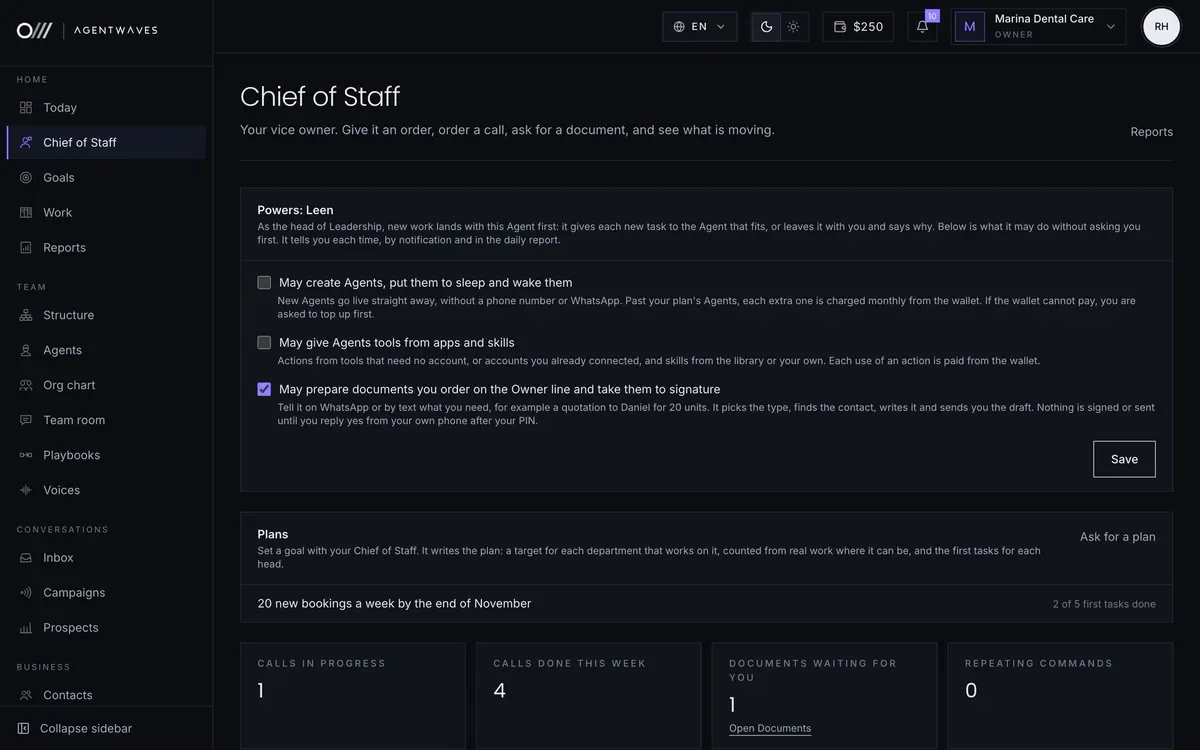
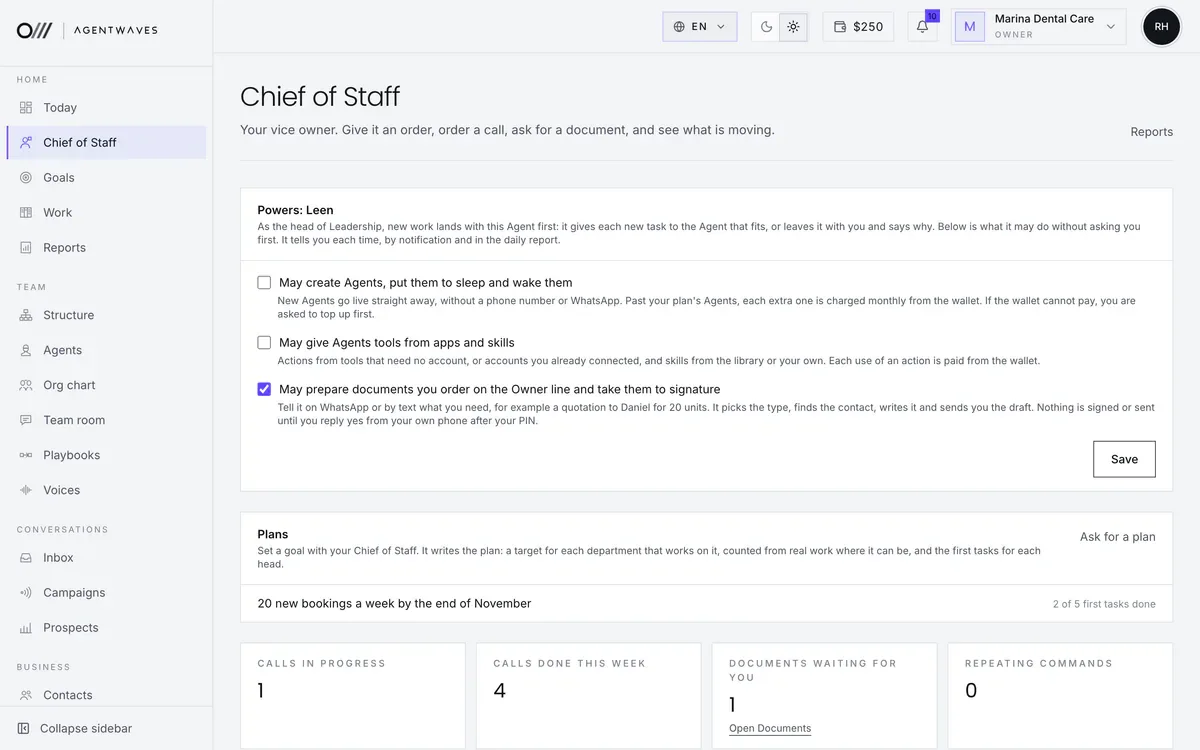
Chief of Staff
Give an order, have an Agent make a call or ask for a document. Results come back on the task or in the chat.
Sample workspace. People, numbers and figures are fictional.